What you will end up with
A spreadsheet with four tabs, built from the transactions of one Divi address:
- Summary: your balance, how much of it you deposited, how much you earned from staking, and your current yield.
- Monthly: rewards and number of stakes per month for the last two years, with a bar chart and a balance-over-time chart.
- Projection: what your balance could be in 1, 3 and 5 years, with rewards re-staked or not, and with optional monthly deposits.
- Transactions: the raw transaction list, where your own history goes.
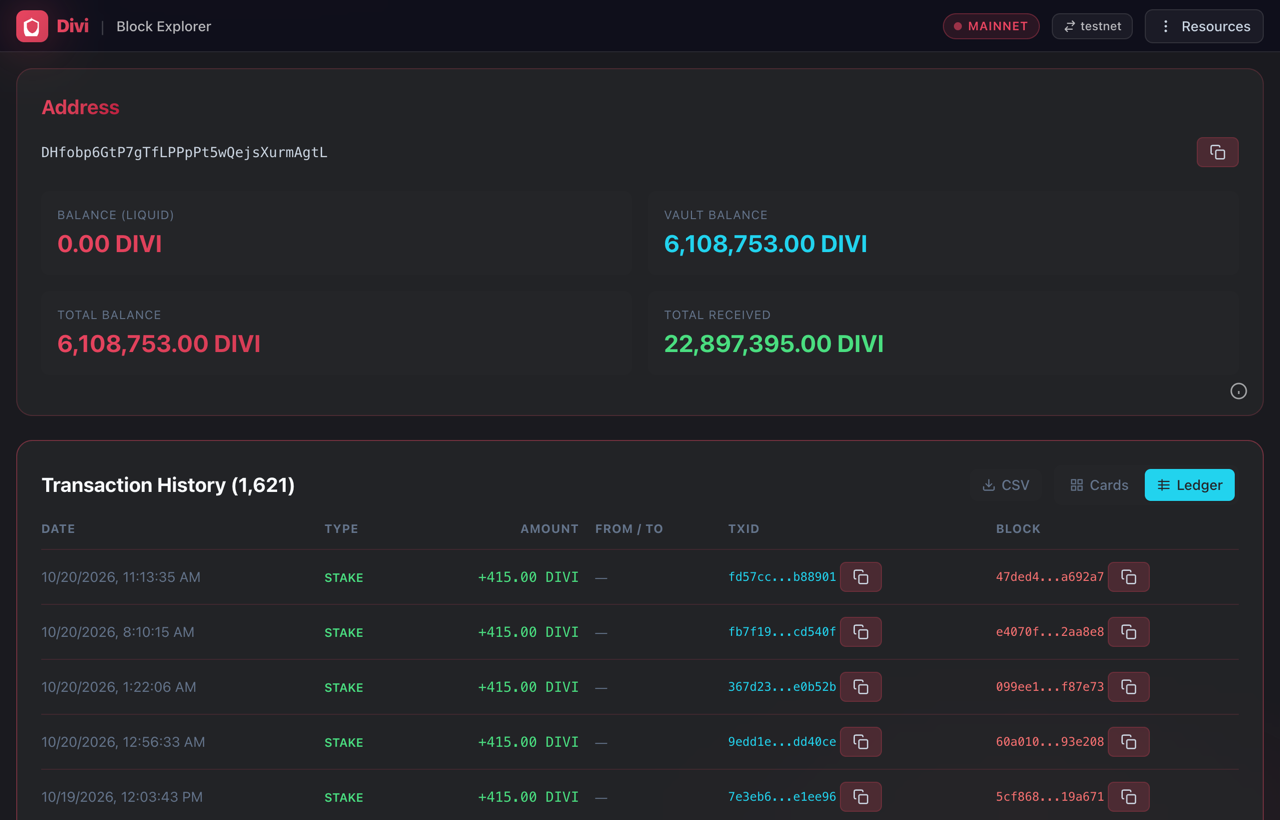
Throughout this tutorial we use the address DHfobp6GtP7gTfLPPpPt5wQejsXurmAgtL as the example. At the time of writing it showed:
All amounts are in DIVI. Your own numbers will be different, and the template recalculates everything as soon as your history is loaded.
1Open your address in Explorer 2.0
Paste your address in, or press Copy to copy this example one and follow along with the tutorial. The links below update to match.
Go to services.divi.domains/explorer2 (it opens in a new tab, so this tutorial stays open), paste your Divi address into the search box and press Enter.
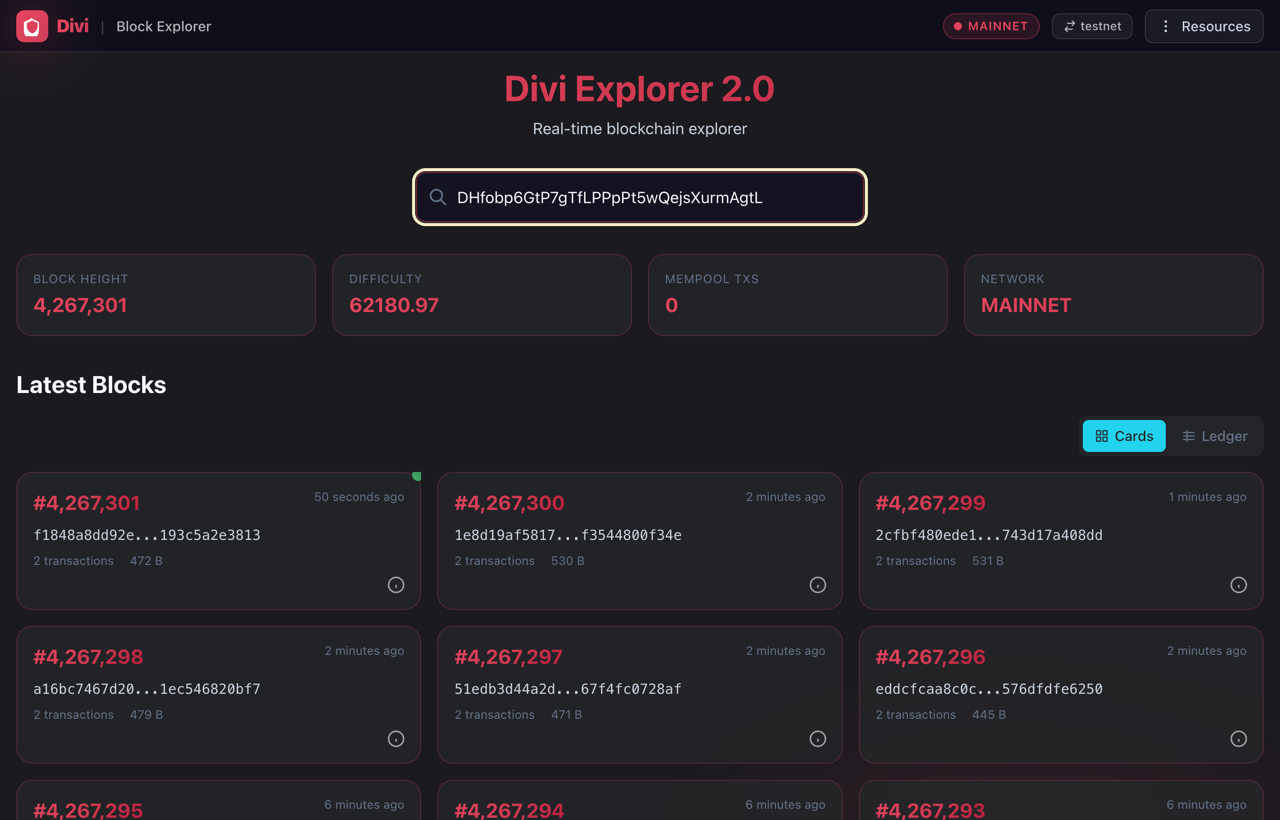
The address page opens. The cards at the top show the address's balances. Write down the Vault Balance (or Balance for an address without a staking vault). You will use it in step 6 to check the spreadsheet.
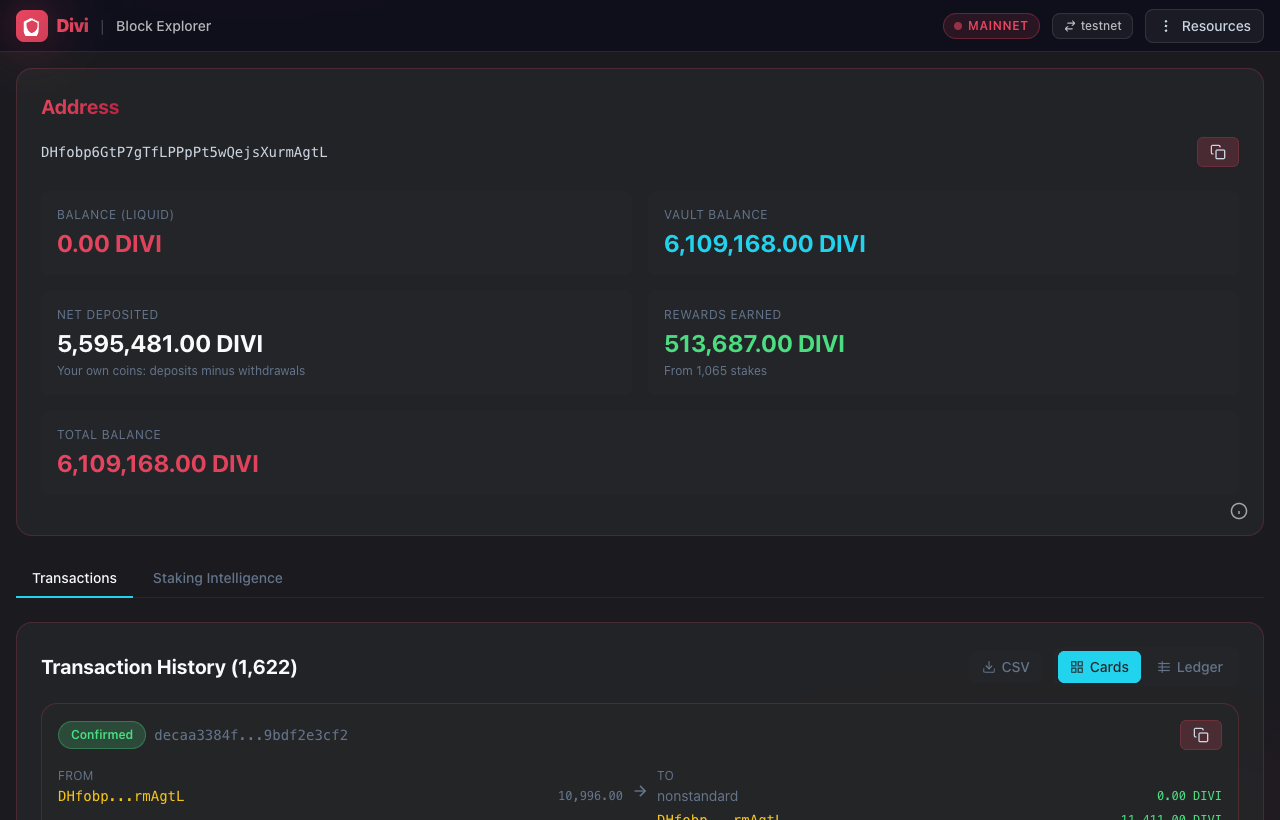
A vault holds its balance as many separate chunks of coins. Each stake spends one chunk and sends it straight back with the reward added, so that chunk counts as "received" again every time it stakes. Over more than a thousand stakes this pushes the explorer's raw Total Received to 22.9 million DIVI here, far more than the 6.1 million balance, and the extra is not money you earned. So on a vault address the explorer shows Net Deposited (the coins you put in, less what you sent away) and Rewards Earned (the reward part of each stake) instead. They are the same two figures the spreadsheet works out.
The address page has its own link, for example services.divi.domains/explorer2/address/DHfobp6GtP7gTfLPPpPt5wQejsXurmAgtL. Bookmark it so you can come back next month without searching.
2Your history as a CSV
The spreadsheet reads your history as a CSV file: one row per transaction. You can get it two ways, and both give exactly the same file.
A link. Every address has its own CSV link. Put your address in place of the example:
https://services.divi.domains/api/rpc/csv/DHfobp6GtP7gTfLPPpPt5wQejsXurmAgtL.csv
Google Sheets can read this link by itself, so with Sheets you do not need to download anything (step 5 shows how). Opened in a browser, the same link shows or downloads the file.
The CSV button. On the address page, scroll down to Transaction History. At the top right of that box is a CSV button.
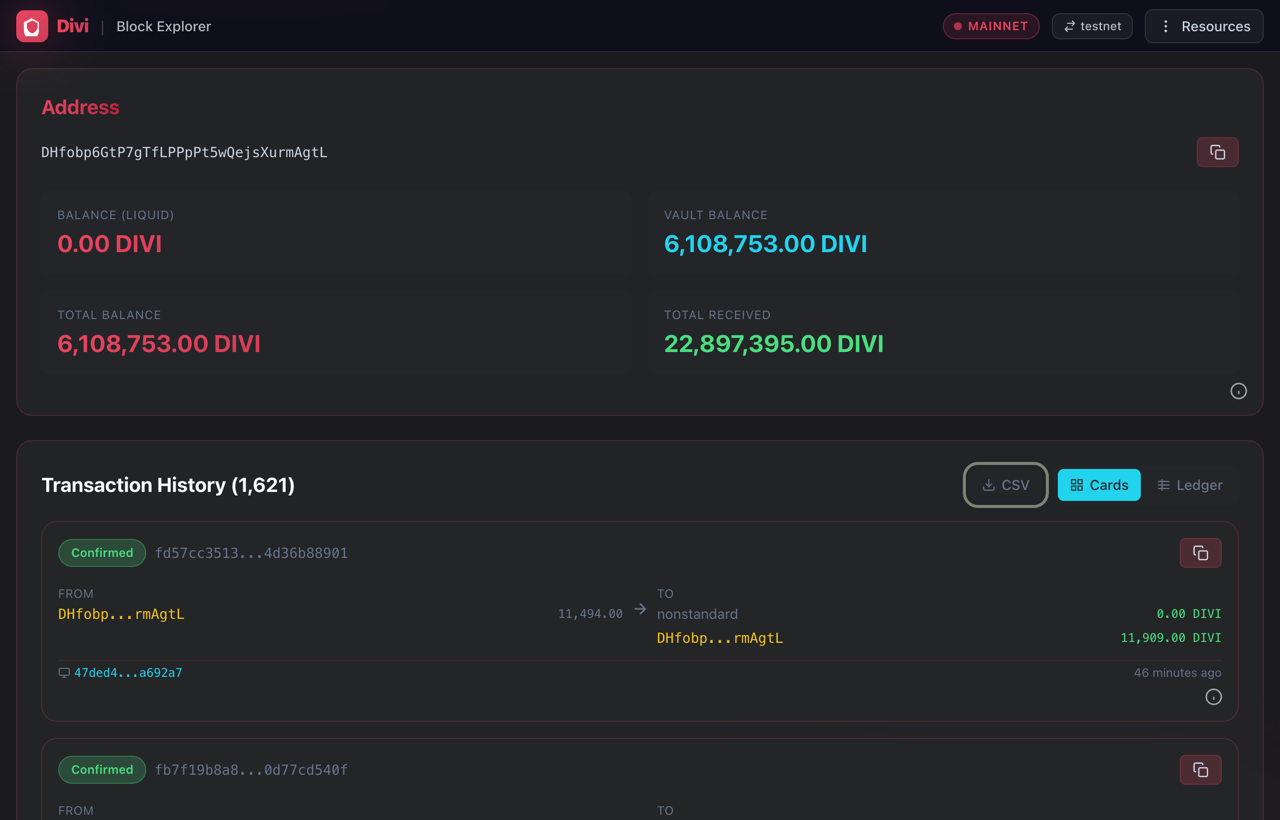
Click it. The button turns into a counter while the explorer collects every transaction, for example 90/1621. A long history takes a few minutes; keep the tab open until your browser saves the file.
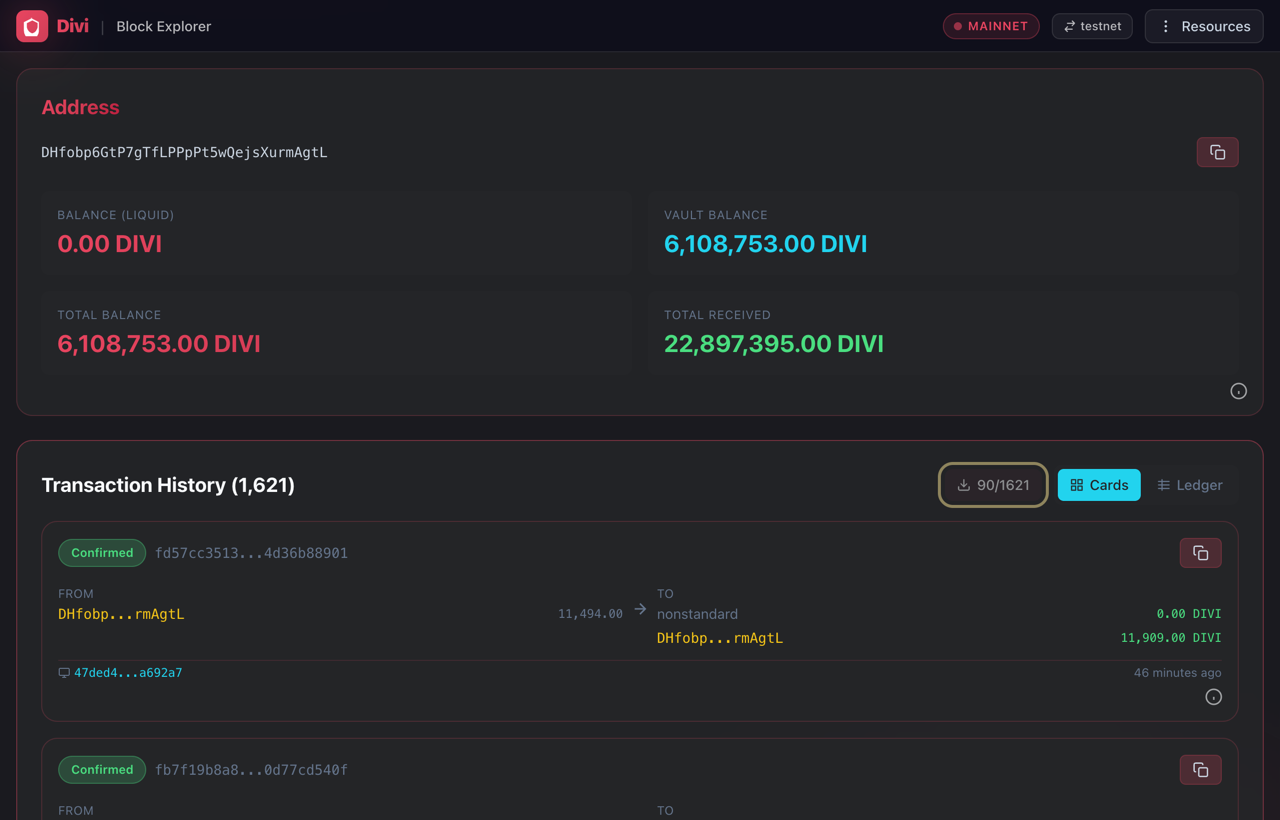
You get a file named after your address, ending in .csv, in your Downloads folder. It has one row per transaction and these columns:
| Column | What it holds |
|---|---|
| Date | When the transaction was in a block, in UTC |
| Type | STAKE for a staking reward, IN for coins sent to you, OUT for coins you sent, SELF for a transaction from the address to itself |
| Amount (DIVI) | The change to your balance. For a stake, only the reward, not the re-staked coins |
| Other Address | Who sent or received the coins, where there is one |
| TxID, Block Hash | Links back to the explorer if you want to look a row up |
To check what a stake looks like, switch the history to the Ledger view. Each stake shows the reward it added, here about 415 DIVI per stake.
The explorer page shows times in your own time zone; the CSV uses UTC. A stake shown at 11:13 AM in New York is 15:13 in the file. It is the same transaction.
3Get the template
Download the spreadsheet template. It already contains the example address's history, so you can look around before loading your own.
Download the template .xlsx · 190 KBThe file uses only ordinary spreadsheet formulas, with no macros, scripts or add-ons. The only thing that ever reaches the internet is the IMPORTDATA formula you add yourself in step 5, and it only fetches the public transaction list of the address you give it.
The same file opens there directly. Steps 4 and 5 are written for Google Sheets, because IMPORTDATA is a Google Sheets function. Excel for Windows and LibreOffice Calc can also keep your history up to date by themselves; the other programs load a downloaded CSV. Excel, Microsoft 365, Numbers and Pages below shows how in each one.
4Open it in Google Sheets
You need a free Google account.
- Go to sheets.new. This opens a new, empty spreadsheet in your Google Drive, in a new tab.
- Choose , open the tab and select the template you downloaded.
- Under Import location choose , then click .
- Give the spreadsheet a name at the top left, for example "Divi staking".
You now see the four tabs at the bottom: Summary, Monthly, Projection and Transactions.
Google Sheets reads numbers and dates according to the spreadsheet's locale. The template and the CSV use a dot for decimals and YYYY-MM-DD dates. If you live where a comma is the decimal mark, open , set Locale to United States, and click . This changes only this spreadsheet.
5Load your own history
Replace the example transactions with yours. Option A lets Google Sheets fetch them by itself and keeps them up to date; option B uploads a CSV file you downloaded.
Option A: let Google Sheets fetch your history
- On the Summary tab, type your Divi address into the yellow cell next to Your Divi address (cell B21).
- Click the Transactions tab.
- Select everything with Ctrl+A (⌘+A on a Mac) and press Delete. This empties the cells but keeps the tab, so the formulas on the other tabs keep pointing at it.
- Click cell A1, paste this formula and press Enter:
=IMPORTDATA("https://services.divi.domains/api/rpc/csv/"&TRIM(Summary!B21)&".csv")
The first time, Google Sheets shows a yellow bar above the grid: Warning: Some formulas are trying to send and receive data from external parties. Click on that bar. Until you do, A1 shows an error (usually #REF!). Google asks only once per spreadsheet.
After a few seconds (up to about ten for a long history) the tab fills with your transactions. From now on Google Sheets fetches the list again by itself, about once an hour.
#REF! with the note You must allow access to fetch data from external URLs: click on the yellow bar at the top. Could not fetch URL: check the address in B21 for a typo. Array result was not expanded: something is left on the Transactions tab; empty it again and keep only the formula in A1.
Option B: upload a CSV file
- Click the Transactions tab.
- Select everything with Ctrl+A (⌘+A on a Mac) and press Delete. This empties the cells but keeps the tab, so the formulas on the other tabs keep pointing at it.
- Click cell A1.
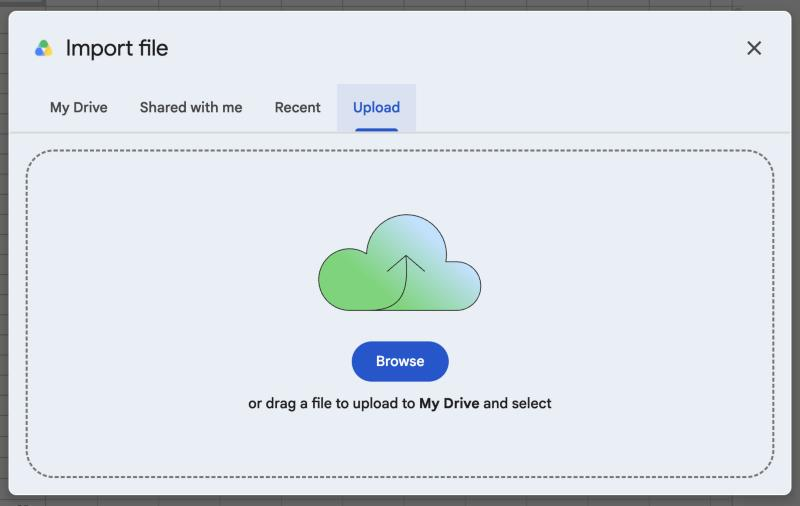
- Choose and select the CSV you downloaded in step 2.
- Under Import location choose . Leave the separator on Detect automatically and click .
Every other tab reads from it by name. If you put your history on a new tab (for example with "Insert new sheet" in option B), the new tab is ignored and you keep seeing the example numbers.
The first row must be the header Date, Type, Amount (DIVI), … and the data starts in row 2. Switch to the Summary tab: it has already recalculated.
6Check the numbers against the explorer
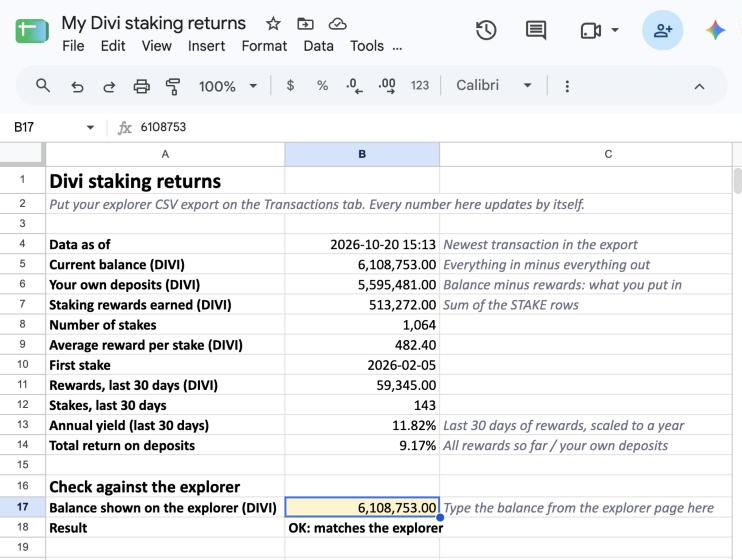
On the Summary tab, find the yellow cell under Check against the explorer (cell B17). Type the balance you wrote down in step 1, without thousands separators, for example 6108753.
The Result row below it tells you whether the export is complete:
| Result | Meaning |
|---|---|
| OK: matches the explorer | The spreadsheet balance is within 1 DIVI of the explorer. Every number on the other tabs can be trusted. |
| MISMATCH: load the transactions again | Some transactions are missing, usually because the address has staked since the list was loaded. With option A, wait an hour and check again: the server keeps a copy of each list for 10 minutes and Google Sheets refreshes it about once an hour. With option B, download a fresh CSV and repeat step 5. In Excel or LibreOffice, see Excel, Microsoft 365, Numbers and Pages. |
Do not skip this step. It is the only way to know the transaction list is complete.
7Read your Summary
| Row | How it is worked out |
|---|---|
| Current balance | Every amount in the export added together |
| Your own deposits | Balance minus staking rewards: the coins you put in yourself, less anything you sent away |
| Staking rewards earned | The sum of all STAKE rows |
| Average reward per stake | Rewards divided by the number of stakes |
| Rewards, last 30 days | STAKE rows in the 30 days before the newest transaction |
| Annual yield (last 30 days) | Last 30 days of rewards divided by the balance, scaled to 365 days |
| Total return on deposits | All rewards so far divided by your own deposits. This one is not per year |
For the example address: 513,272 DIVI of rewards on 5,595,481 DIVI of deposits is a total return of 9.2 % since the first stake in February 2026, and the last 30 days ran at about 11.8 % a year.
8Monthly rewards and charts
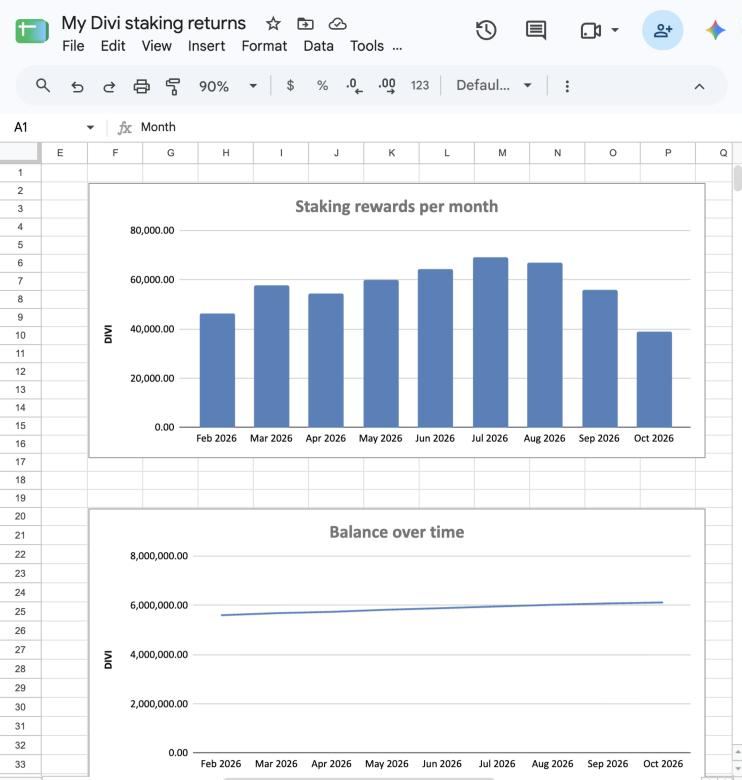
The Monthly tab lists the last 24 months: rewards earned, how many stakes, and the balance at the end of each month. The months are counted back from the newest transaction in your export.
Two charts sit to the right of the table:
- Staking rewards per month: a bar per month. Steady bars mean steady staking; a dip usually means the wallet was offline or the vault was being moved.
- Balance over time: steps up when you deposit and climbs slowly as rewards are added.
Your staking wallet must be online and unlocked for staking to earn rewards. Compare a weak month with when the wallet machine was off or updating.
9Project your future returns
The Projection tab has three yellow input cells. Change them to try out scenarios; everything else updates.
| Cell | Input | Starts as |
|---|---|---|
| B4 | Starting balance (DIVI) | Your current balance from the Summary |
| B5 | Expected annual yield | Your last-30-day yield. Type your own guess, for example 10% |
| B6 | Extra deposit each month (DIVI) | 0. Enter an amount if you plan to add coins regularly |
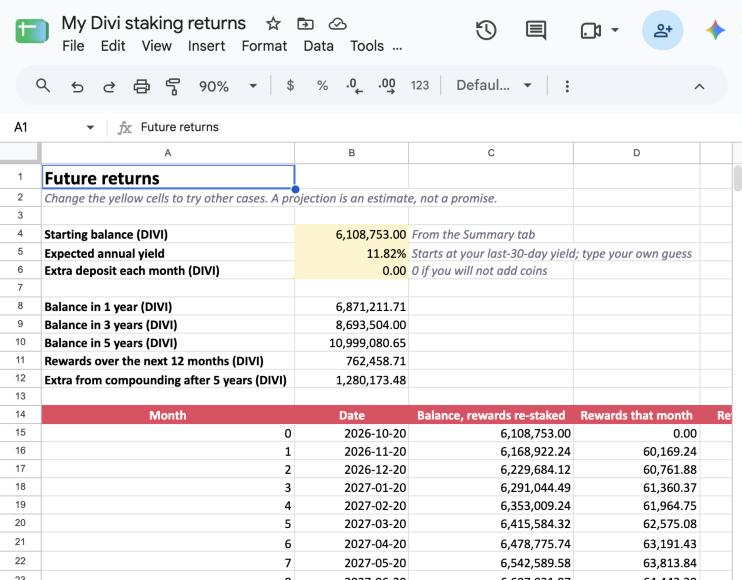
Below the inputs you get the balance in 1, 3 and 5 years, the rewards over the next 12 months, and how much extra comes from compounding. The table underneath goes month by month for 5 years, and the Projected balance chart shows two lines:
- Rewards re-staked: rewards stay in the vault and earn rewards themselves. This is what happens when you leave a Divi vault staking.
- Rewards not re-staked: as if you sent every reward away the month it arrived.
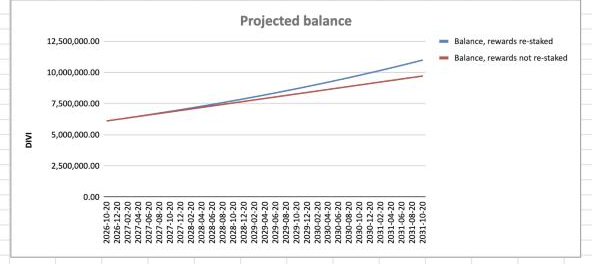
The gap between the two lines is the value of compounding. For the example address, at its current 11.8 % a year with no extra deposits, the projection is about 6.87 million DIVI after 1 year and about 11.0 million after 5 years.
Set the yield a few points lower than your current one. Staking yield on Divi depends on the network's total stake and on how often your wallet is online, so a lower figure gives you a safer planning number.
10Keep it up to date
With option A from step 5 there is nothing to re-import: Google Sheets fetches your transactions again by itself. Whenever you look, type the current explorer balance into the check cell and confirm it says OK (step 6).
With option B, once a month (or whenever you like):
- Download a fresh CSV from your CSV link or your bookmarked address page (step 2).
- On the Transactions tab, select everything, delete, click A1 and import the new file (step 5, option B).
- Type the new explorer balance into the check cell and confirm it says OK (step 6).
Your projection inputs on the Projection tab stay as you left them.
Values in your own currency
Your tax office and your accounting app do not care how many DIVI you earned. They care what those DIVI were worth in your own currency, on the day you received them. So the CSV and the explorer can both put a value on every coin, measured in a stablecoin: a coin built to track a national currency, such as USDT or USDC for the US dollar and EURS for the euro.
Add a currency to the CSV
Add ?vs= and a currency to the end of your CSV link:
https://services.divi.domains/api/rpc/csv/DHfobp6GtP7gTfLPPpPt5wQejsXurmAgtL.csv?vs=usdt
The file gets two more columns: Price (USDT), the price of one DIVI on that row's day, and Value (USDT), the row's amount times that price. A STAKE row's value is the income you report; an OUT row's value is negative.
| Put on the end | Values in |
|---|---|
| ?vs=usdt | Tether (USDT), tracks the US dollar |
| ?vs=usdc | USD Coin (USDC), tracks the US dollar |
| ?vs=dai | Dai (DAI), tracks the US dollar |
| ?vs=pyusd | PayPal USD (PYUSD), tracks the US dollar |
| ?vs=fdusd | First Digital USD (FDUSD), tracks the US dollar |
| ?vs=eurs | STASIS EURO (EURS), tracks the euro |
| ?vs=usd | The US dollar itself |
The link works anywhere the plain one does, including Google Sheets' IMPORTDATA from step 5. The template reads the first columns only, so the extra two do not disturb it.
The prices come from CoinGecko, which publishes one price a day for the last year. Rows older than that have an empty price and value. For those, take the day's price from a source your tax adviser accepts and fill it in yourself. A stablecoin is not your currency itself: it usually trades within a cent of it, but check what your tax office wants.
See it in the explorer
The Staking intelligence tab has a Value in your currency box. Pick a currency under Show value in; it shows what your balance and your rewards are worth today, and its CSV link changes to match. The explorer remembers your choice.
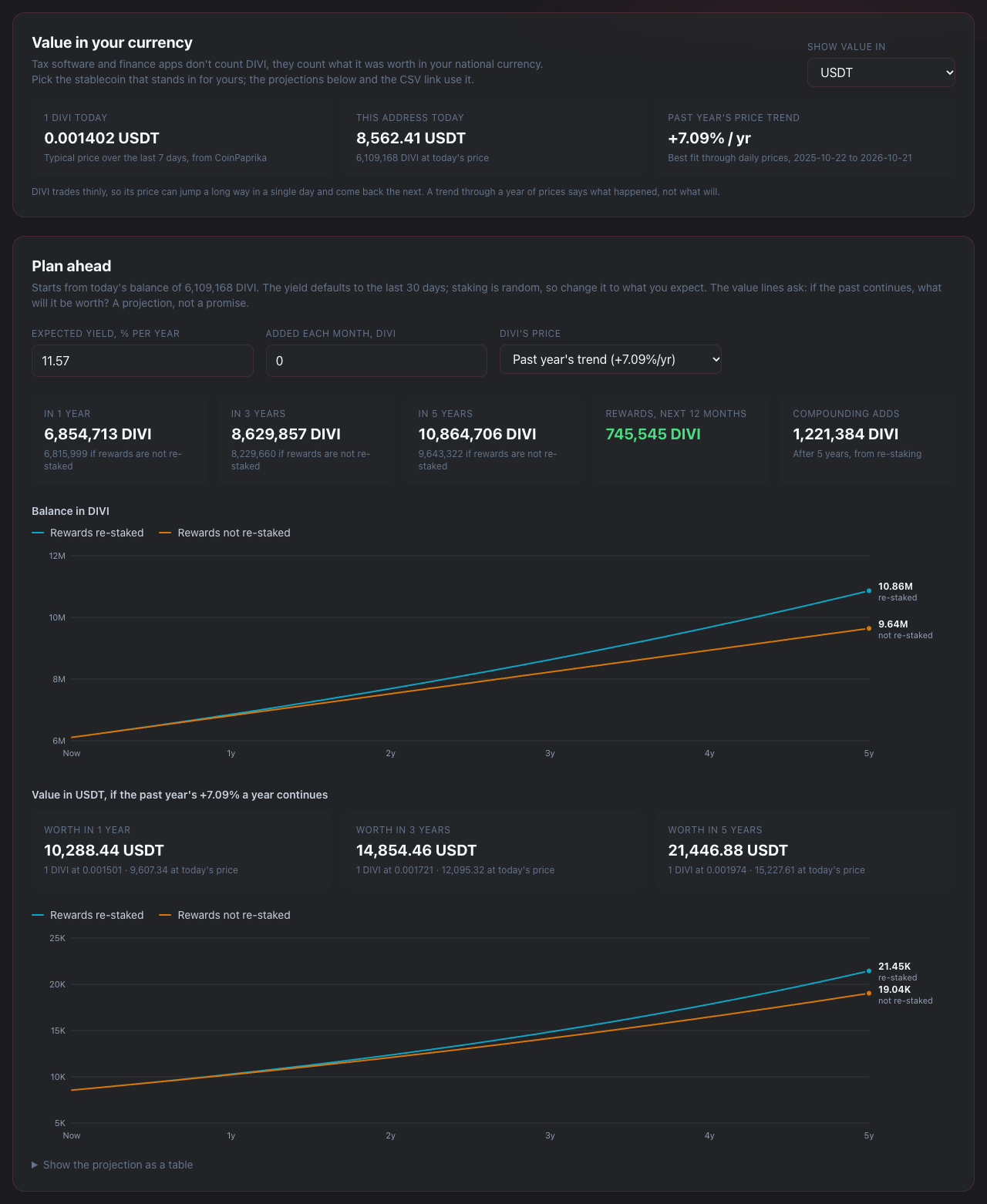
If the past continues: DIVI and its value
Below it, Plan ahead projects five years in two charts. The first counts DIVI: how your balance grows at your yield, with rewards re-staked or not, the same as the spreadsheet's Projection tab. The second turns that into your currency, and for that it needs a guess at DIVI's future price. DIVI's price gives three:
- Past year's trend: DIVI's price keeps changing by the same percentage a year as it did over the last year. This is the "if the past continues" case.
- Today's price, flat: the price never moves, so the value grows only with your DIVI.
- My own guess: type your own percentage a year under Price change, % per year; a minus sign means a falling price. Try a fall as well as a rise.
"Today's price" is the middle of the last seven daily prices, so one odd day does not swing the result. Hover over either chart to read a month's figure.
Excel, Microsoft 365, Numbers and Pages
The template is an ordinary .xlsx file, so it opens in Excel, Apple Numbers and LibreOffice as well as Google Sheets. What differs is how the program gets your transactions and whether it can fetch them again by itself.
| Program | Fetches the CSV link itself | Updates by itself |
|---|---|---|
| Google Sheets | Yes, with IMPORTDATA (step 5, option A) | Yes, about once an hour |
| Excel for Windows (Microsoft 365; Microsoft's list also names 2016 and 2019) | Yes, with | Yes, on a timer you set, while the file is open |
| Excel for Mac | Not with : Microsoft's list of its sources has no Web entry | No. Download the CSV and import it |
| Excel for the web (in a browser) | No: its has no Web source either | No |
| LibreOffice Calc | Yes, with | Yes, on a timer you set, while the file is open |
| Apple Numbers | Apple documents importing files, not web links | No. Download the CSV and import it |
| Apple Pages | Pages is a word processor, not a spreadsheet. Apple documents tables you type or paste into, not tables that load data | |
Excel for Windows: a link that updates itself
Excel for Windows can read the same CSV link Google Sheets uses. Open the template in Excel first.
- On the Transactions tab, select everything with Ctrl+A and press Delete.
- Choose .
- Paste your CSV link from step 2, for example https://services.divi.domains/api/rpc/csv/DHfobp6GtP7gTfLPPpPt5wQejsXurmAgtL.csv, and click . If Excel asks how to connect, choose .
- A preview of your transactions appears. Click the small arrow next to and choose .
- Choose and , type =Transactions!$A$1 and click .
The history lands on the Transactions tab with the header in row 1, where the other tabs expect it. To make it update by itself:
- Choose , right-click the query in the panel and choose .
- Tick and type 60, and tick .
- Save the workbook.
Excel now fetches your history every time you open the file and every hour while it is open. To fetch right away, choose . Check the balance in step 6 as usual.
The plain button puts the data on a new tab. The other tabs only read the tab named Transactions, so you would keep seeing the example numbers. Always use and the Transactions tab.
These steps follow Microsoft's own guides, Import data from the web and Connection properties. Menu names can move a little between Excel versions.
Excel for Mac: import the CSV file
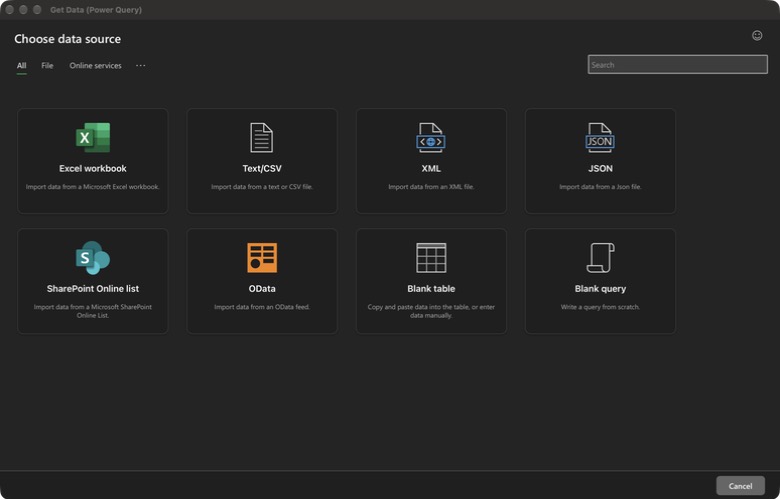
Excel for Mac can import external data, but not from a web link through . Microsoft's list of Power Query sources in Excel for Mac names Excel workbooks, Text/CSV, XML, JSON, SQL Server, SharePoint Online lists, OData and blank tables; there is no Web entry, and in 2023 Microsoft said it plans to add one. Excel 2016 and 2019 for Mac have no Power Query at all. Its window looks like this:
- Download your CSV from the link or the CSV button (step 2).
- Open the template in Excel. On the Transactions tab, select everything with ⌘+A and press Delete.
- Open the CSV in Excel too (double-click it, or ). Press ⌘+A, then ⌘+C.
- Go back to the template, click cell A1 on the Transactions tab and press ⌘+V.
To update, download a fresh CSV and repeat these four steps. Check the balance in step 6. If a future Excel for Mac gains the Web source, the Excel for Windows steps above will work there too.
Excel for the web and Microsoft 365 in a browser
Excel in a browser (at office.com or in OneDrive) opens the template and calculates everything, but it cannot create a link to the CSV. Since January 2026 it has a button on Microsoft 365 Business and Enterprise plans, but Microsoft's list of its sources is files on OneDrive or SharePoint, SQL Server, SharePoint lists and OData: no web link. Microsoft lists the button for Business and Enterprise plans.
A link made in Excel for Windows does not update in the browser either: Microsoft's list of data sources Excel for the web can refresh does not include web links. If you keep the workbook in OneDrive, set up and refresh the link in Excel for Windows; in the browser you see the numbers from the last refresh.
LibreOffice Calc: a link that updates itself
LibreOffice Calc can read the CSV link too, and refresh it on a timer. Open the template in Calc first.
- On the Transactions tab, select everything with Ctrl+A (⌘+A on a Mac) and press Delete, then click cell A1.
- Choose .
- Paste your CSV link from step 2 into and press Enter. Calc shows its text import dialog; make sure is the only separator ticked and click .
- Select the entry under , enter 3600 seconds in , and click .
Your history lands at A1 of the Transactions tab and Calc fetches it again every hour while the file is open. LibreOffice's own guide: External Links. Check the balance in step 6 as usual; to update right away, choose and click .
Apple Numbers: import the CSV file
Apple's guide to Numbers describes importing Excel and text files, not reading a web link, so load your history by hand: open the template, empty the Transactions tab, open your downloaded CSV, copy everything and paste it into cell A1 of the Transactions tab, exactly as for Excel for Mac above. We have not tested the template in Numbers; if a cell shows an error there, Google Sheets or Excel will give you the correct figure.
The "First stake" date on the Summary tab uses MINIFS, which Excel 2016 and older do not have. Only that one cell is affected; every other number works.
Apple Pages
Pages is Apple's word processor. It has tables and charts, and Apple's guide describes tables you type or paste into, not tables linked to a spreadsheet or a web address. To put your figures in a Pages report, copy them from the spreadsheet and paste them in, and paste again when you want newer numbers.
QuickBooks, Xero, Quicken and other money apps
If you only want to see your returns, you do not need a spreadsheet at all: the explorer's Staking intelligence tab shows the same yield and projection for any address. But the explorer only sees the blockchain. It has to treat every coin that arrives as profit and every coin that leaves as a loss, because it cannot know that a deposit was your own savings, or that a withdrawal paid a bill or moved coins to your other wallet. Your real books are messier than that, and only you can annotate them. That is why the history is a file you can take into your own private tools.
Can they fetch the link by themselves?
No. Unlike Google Sheets, Excel for Windows and LibreOffice Calc, none of these apps reads a web link on a schedule. They all take a file you upload, and their automatic bank feeds cover banks, not Divi addresses.
| App | Files it imports | Updates by itself |
|---|---|---|
| Koinly, CoinLedger | Each has a Divi page with its own import steps; CoinLedger also takes a CSV in its own layout | See their Divi pages below |
| QuickBooks Online | CSV, QBO, QFX, OFX | No. Upload a file |
| Xero | CSV, OFX, QFX, QBO, QIF | No. Upload a file |
| Quicken | Windows: QFX, CSV (QIF only into cash, asset and liability accounts). Mac: OFX, QFX | No. Import a file |
| YNAB | CSV, OFX, QFX, QIF; also a public API | Only through the API |
| Monarch | CSV (web app only) | No. Upload a file |
| Wave | CSV, OFX, QBO, QFX | No. Upload a file |
Accounting and budgeting apps record every amount in your own currency. The plain CSV counts in DIVI only. Before you import it into QuickBooks, Xero, Quicken, YNAB, Monarch or Wave, download it with a currency added (see above) so every row carries its value on that day, use the priced OFX statement below, or add that column yourself from a price history you trust. Crypto tax tools such as Koinly and CoinLedger are built for this, which is why they are the easier place to start.
Crypto tax tools: Koinly and CoinLedger
Both publish a page for Divi: Koinly's Divi page and CoinLedger's Divi page. Start there and follow their steps. If you need to add rows by hand, their CSV import wants its own column layout, not ours; CoinLedger publishes its manual import template, and CoinTracker its CSV format. Copy our Date and Amount into their columns: a STAKE row is income, an IN row is coins received and an OUT row is coins sent.
QuickBooks, Xero, Quicken, YNAB, Monarch and Wave: a CSV statement
Each of these treats the CSV like a bank statement. The menus differ, but the preparation is the same. Work on a copy of your downloaded CSV in any spreadsheet:
- Download the CSV with
?vs=usdt(or your currency) on the end of the link, so it already has a Value column: the Amount (DIVI) times the DIVI price on that row's date. For rows older than a year, fill in the value yourself. An OUT row has a negative amount, so its value is negative too, which is how these apps tell money in from money out. - Add a column named Description that joins the Type and the TxID, for example STAKE 3f9c…, so you can find the transaction on the explorer later.
- Delete the other columns, keep the header row, and save as CSV.
- In the app, create an account for your Divi wallet, choose its statement or file upload, and match the columns when asked: Date to date, Description to description, Value to amount.
The vendors' own guides: QuickBooks Online, manually upload transactions; Xero, manually importing bank statements; Quicken, import transactions from a CSV file; Wave, upload a statement in CSV format; YNAB, file-based import; Monarch, importing transactions manually.
Skip the spreadsheet: an OFX statement
QuickBooks Online, Xero, YNAB, Wave and Quicken for Mac also import OFX, the file format banks use for statements. The explorer serves your history as one, already priced, so there is nothing to prepare. Download it from this link and upload it to your Divi account in the app:
https://services.divi.domains/api/rpc/ofx/DHfobp6GtP7gTfLPPpPt5wQejsXurmAgtL.ofx?vs=usdt
- Every amount is money: the DIVI on that line times DIVI's price that day. The
?vs=names work as for the CSV;?vs=eursgives a statement in euros, and the others give US dollars. - Each line's memo keeps the DIVI amount and the price, for example 456.00 DIVI at 0.0014 USDT, so the coins are never lost from your books.
- Lines older than about a year have no price, so they are left out of the file. Add those from the CSV yourself.
- Each line carries its transaction id. Import a newer file later and the app adds only the new transactions.
- Without
?vs=the file counts DIVI, not money. Import that one only into an app that can hold an account in DIVI units, such as GnuCash, where an account can be kept in a security you define yourself, never into a cash account.
Quicken for Windows does not read OFX, only its own QFX flavour of it, so use the CSV steps above there; Quicken for Mac takes the OFX file. If any other app turns the file down, the CSV steps work there too.
This is where the messy parts get fixed. Mark STAKE rows as income. Mark an IN or OUT between two of your own wallets as a transfer, not a gain or loss. Give each payment its real category. The app keeps those notes private to you, and to update it, download a fresh CSV and import only the rows after your last import.
Reading the numbers honestly
- The projection assumes the same yield every month for 5 years. Real staking rewards change with the network's total stake, your wallet's uptime and any change to Divi's reward schedule.
- The spreadsheet counts in DIVI. The value of DIVI in dollars, euros or any other currency can go up or down a lot. The explorer's value projection only asks "what if the past year's price change carried on"; it is a what-if, not a forecast, and a past trend says nothing certain about the next one.
- DIVI trades thinly, on few markets. A single big order can move its price, so a day's price is a rough guide, not a firm number you could always sell at.
- Past yield does not guarantee future yield.
This tutorial shows you how to read your own on-chain history. It is not investment, tax or financial advice. For decisions about your money or your taxes, talk to a qualified professional.
Your address history is public on the blockchain. The CSV contains nothing secret. Still, think before you share your spreadsheet: it links your address to you.